Customer experience
How to manage allergens on a digital restaurant menu
Learn how to manage allergens on your digital menu. Check recipes, suppliers and kitchen changes, and keep information up to date with TAVLO.
Reviewed on 22 Nov 2026
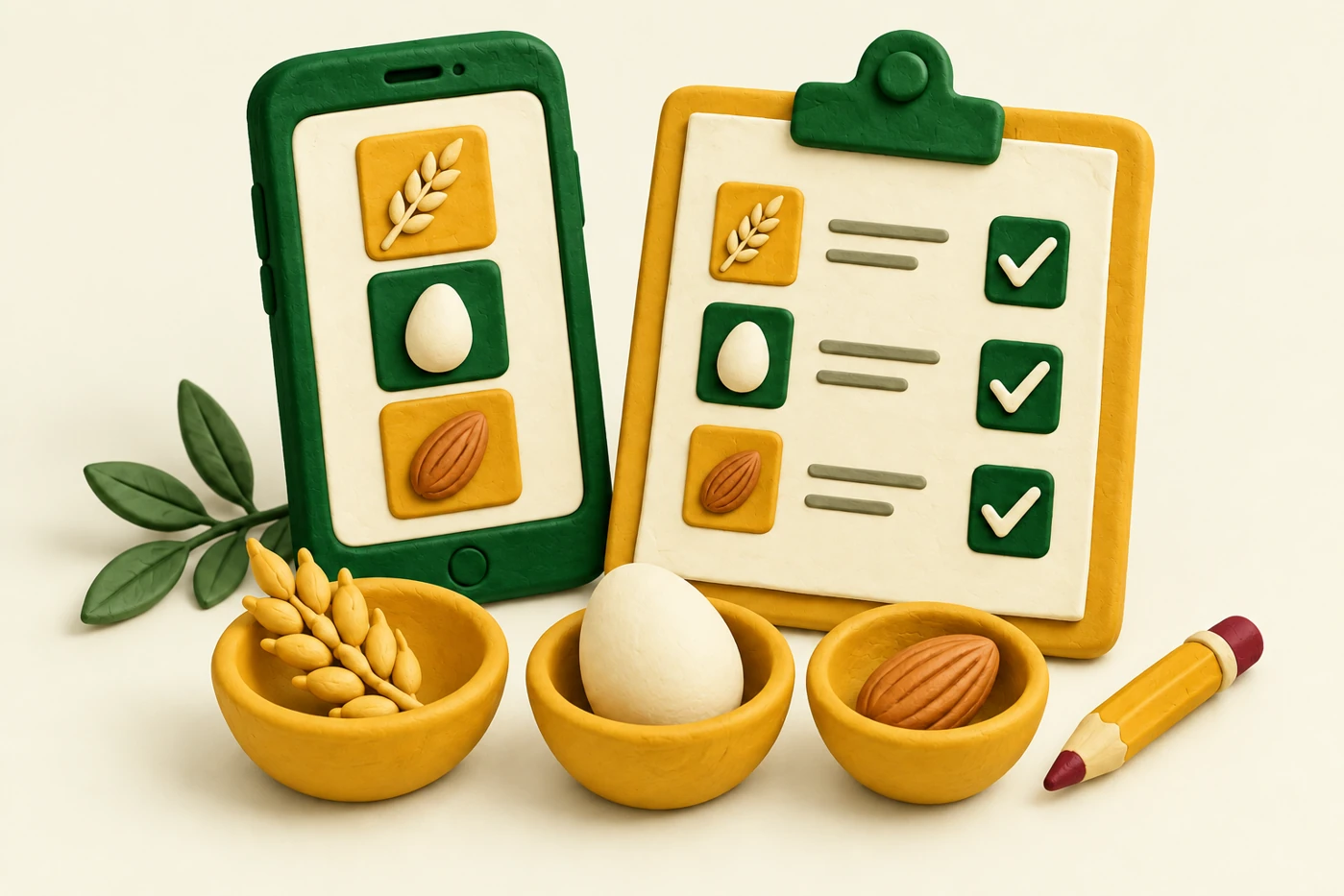
Showing allergens on a digital menu helps customers find important information before ordering.
Adding icons alongside each dish is only the last step.
Useful information starts with the recipes you actually use. Check it against labels and supplier specifications, and update it whenever an ingredient or preparation changes.
A digital menu helps you publish and maintain the information. Your kitchen team must confirm what it actually does.
Quick answer: how do you manage allergens on a digital menu?
A restaurant should follow this process:
- Keep an up-to-date record for every recipe.
- Check every ingredient, including sauces and garnishes.
- Check labels and supplier documentation.
- Identify allergens that must be declared.
- Confirm the information with the kitchen.
- Publish only information that has been checked.
- Check how it appears on the digital menu.
- Inform front-of-house staff.
- Update the menu when a recipe, brand or supplier changes.
TAVLO lets you display and update allergens for each item. Its AI can suggest possible allergens, and venue staff must review and confirm those suggestions before publishing.
A digital menu helps organise information that your team checks
| The digital menu helps you… | The venue must… |
|---|---|
| Display allergens alongside each dish | Confirm them against the recipes actually used |
| Suggest possible allergens with AI | Check labels and technical specifications |
| Update information in real time | Communicate changes in the kitchen |
| Keep the same QR code | Review the menu when a supplier changes |
| Show dietary options | Confirm that those indications are accurate |
| Make the menu easy to browse on a phone | Train staff to answer questions |
The tool makes reviewed information available to customers. The venue remains responsible for its accuracy.
1. Create a record for each recipe
Start in the kitchen with the recipes you actually use.
Prepare a record for every dish with:
- Item name.
- Main ingredients.
- Prepared products used.
- Sauces.
- Stocks.
- Dressings.
- Coatings.
- Toppings.
- Garnishes and side dishes.
- Oils used.
- Brand or supplier where relevant.
- Confirmed allergens.
- Date of the last review.
- Person who checked the information.
A shared record reduces the risk that the kitchen, front-of-house team and menu use different versions of the same recipe.
2. Review every part of the dish
Allergens can be present beyond the main ingredient.
They can also be in:
- A prepared sauce.
- The stock used in the dish.
- A thickening agent.
- A spice blend.
- Breadcrumbs.
- A dressing.
- A garnish or side dish.
- A decoration.
- A compound ingredient.
- An ingredient used in a small amount.
For example, check the filling, béchamel and coating of a croquette.
Check the actual recipe and ingredients instead of relying on the dish name or copying information from a similar dish.
3. Check labels and supplier specifications
Prepared products may contain ingredients that are not obvious.
Keep and check:
- Packaging labels.
- Technical specifications.
- Ingredient declarations.
- Information provided by suppliers.
- The latest versions of those documents.
If you replace a product with a different brand, check its ingredients again.
Two products that do the same job in a recipe can contain different allergens.
A dish can keep its name even when its ingredients change.
4. Keep allergen information separate from dietary preferences
Allergen information and dietary options answer different questions.
| Label | What it tells customers |
|---|---|
| Allergen | The dish contains a substance or product that must be declared |
| Vegetarian | The dish is meat- and fish-free, under the venue’s definition |
| Vegan | The dish contains no ingredients of animal origin |
| Gluten-free | The ingredients and preparation support this claim |
| Lactose-free | The ingredients and preparation match this claim |
A vegetarian dish can contain eggs, milk, gluten or nuts.
A vegan dish can contain soy, sesame, peanuts or gluten.
Check allergens separately for items labelled vegetarian or vegan.
Take particular care with ‘gluten-free’ and ‘lactose-free’. Verify those claims using the actual ingredients and preparation.
5. Confirm the information with the kitchen
Before publishing allergens, the person responsible must check that the records match the recipes actually prepared.
Ask questions such as:
- Does the written recipe match how the dish is prepared now?
- Do you use a sauce or product that is missing from the record?
- Has an ingredient changed recently?
- Is the side or garnish always the same?
- Do you use the same brand?
- Are there different versions of the dish?
- Does the set-menu item use the same recipe?
- Does the team know the possible risks during preparation?
Have someone who knows the recipe and can check the documentation validate the information.
6. Publish allergens in TAVLO
Once the information is confirmed, mark the relevant allergens for each item in TAVLO.
The menu can show the following alongside each dish:
- The name.
- The description.
- The price.
- The serving options.
- Photos.
- Allergens.
- Dietary options.
- Availability.
Customers can find the information for the item they are viewing without looking through a separate document.
List allergens by name in writing. If you use icons, provide a clear key so customers know what each one means.
7. Check the menu as customers will see it
Check the customer-facing menu as well as the dashboard.
Open the public menu on a phone and select several items with different ingredients.
Check:
- The right item appears.
- Allergens match the record.
- The icons are easy to understand.
- The key is clear.
- The description matches the allergen information.
- Dietary options are accurate.
- Staff can find the dish quickly.
- The menu shows the latest published version.
This check helps catch errors and shows the team where to find the information when a customer asks.
8. Decide who handles each change
You can update a digital menu quickly once someone reports a recipe change.
Assign responsibilities:
| Person or team | Responsibility |
|---|---|
| Kitchen | Report changes to recipes, ingredients and preparation |
| Purchasing | Flag changes in brand or supplier |
| Allergen lead | Review documentation and confirm information |
| Menu lead | Update TAVLO and check the public menu |
| Front-of-house staff | Find the information and direct questions to the right person |
In a small venue, one person may cover several roles. Assign someone to handle each change so updates do not rely on memory.
9. Update the menu when things change in the kitchen
Managing allergens continues after the first version is published.
Review the information when:
- An ingredient changes.
- A recipe changes.
- You switch brands.
- You change suppliers.
- You add a new sauce.
- The garnish or side changes.
- You add a dish.
- A seasonal item returns.
- You reuse a recipe on a different menu.
- The preparation method changes.
Update items from the TAVLO dashboard while keeping the same QR code.
Changes appear in real time. Open the public menu afterwards to confirm the update was saved correctly.
What to do when an ingredient changes
| Change | Recommended action |
|---|---|
| New supplier | Review their documentation |
| Different brand | Compare the ingredient list |
| Recipe change | Update the dish record |
| New sauce or side dish | Check its ingredients |
| Seasonal item | Confirm all information before publishing |
| Sold-out dish | Update availability |
| Allergen correction | Update TAVLO and check the public menu |
| Confirmed change | Tell kitchen and front-of-house staff |
Check the documentation before removing an allergen, even when the new product looks identical.
10. Keep front-of-house staff informed
Customers can browse the digital menu and may still have questions.
Front-of-house staff should know:
- Where to find the allergen record.
- How to check information for each dish.
- Who can confirm an answer.
- What has changed.
- Which items or recipes need another check.
- To check the facts before answering.
- That vegetarian and vegan labels do not answer every allergen question.
If the answer is unclear, check before responding.
Use the digital menu to support communication between the kitchen and front-of-house staff.
What role does AI play?
TAVLO’s AI can analyse the name and description of a dish and suggest possible allergens.
For example, it can flag common allergens in an item described as ‘homemade ham croquettes’.
It cannot reliably know:
- Which recipe the restaurant uses.
- Whether the béchamel contains milk.
- What is used for the coating.
- Which brand of breadcrumbs was bought.
- Whether the recipe has changed.
- What ingredients are in a prepared sauce.
- How the kitchen organises preparation.
- Whether there is a risk of cross-contact.
Use the suggestion as the starting point for a review.
AI can flag what to check. The venue confirms what the dish actually contains.
Allergen information alone cannot rule out cross-contact
Listing allergens in the recipe leaves preparation risks to be assessed separately.
In the kitchen, also assess:
- Shared surfaces.
- Utensils.
- Fryers.
- Oils.
- Griddles.
- Storage.
- Handling.
- Residue from previous preparations.
- How service is organised.
A digital menu communicates information about items. It cannot guarantee a dish is safe for someone with an allergy if the venue cannot control preparation conditions.
Make only claims you can confirm.
When a customer mentions an allergy, staff should check the recipe and how the kitchen actually prepares the dish before answering.
Common mistakes when managing allergens
Inferring allergens from the name
The name does not show every sauce, side or compound ingredient.
Copying information from another dish
Similar dishes can use different ingredients or brands.
Publishing an AI suggestion directly
AI does not know the exact recipe or supplier documentation.
Treating ‘vegan’ as ‘allergen-free’
A vegan dish can contain several allergens that must be declared.
Keeping the menu unchanged after switching suppliers
A new brand can have different ingredients.
Updating the record without updating the menu
The internal record and the information customers see should match.
Editing the menu without telling the team
The kitchen, front-of-house staff and menu should all use the same version.
Presenting a filter as a guarantee
A filter helps people find items based on the information recorded. It cannot guarantee a dish is suitable for someone with an allergy.
A simple routine to keep information up to date
Use this process whenever something changes:
- The kitchen or purchasing team reports the change.
- The recipe and documentation are checked.
- The internal record is updated.
- The person responsible confirms the allergens.
- The item is updated in TAVLO.
- The public menu is opened on a phone.
- Front-of-house staff are told.
- The current documentation is saved.
This routine takes some work initially and helps avoid pending corrections or conflicting information across the team.
Checklist before publishing
Recipes and documentation
- Is there an up-to-date record for each dish?
- Have all ingredients been reviewed?
- Have sauces, coatings and side dishes been included?
- Are supplier labels or specifications kept on file?
- Does the information match the current recipe?
Verification
- Has someone responsible confirmed the information?
- Have AI suggestions been reviewed?
- Have dietary options been checked separately?
- Have the actual preparation conditions been assessed?
Digital menu
- Does each item show the correct allergens?
- Do the icons have a clear key?
- Does the description match the published information?
- Has the menu been checked on a phone?
- Are changes visible on the public menu?
Team
- Do staff know where to find the information?
- Does the kitchen report changes?
- Does purchasing flag changes to products?
- Do front-of-house staff know who can answer questions?
- Is there a routine for updating the menu?
How TAVLO helps
TAVLO keeps items and the venue’s reviewed information together in one menu.
You can:
- Mark the allergens in each dish.
- Add dietary options.
- Add descriptions.
- Use AI to get a first draft.
- Correct information from the dashboard.
- Show changes in real time.
- Keep the same QR code.
- Check the menu on your phone.
- Manage updates yourself.
TAVLO helps publish and maintain the information. Your team still checks recipes, suppliers and internal processes.
For the legal requirements, see our guide to allergen disclosure requirements in Spain.
Frequently asked questions
Can TAVLO automatically identify allergens?
AI can suggest possible allergens using the name and description of a dish. Staff must review and confirm them against recipes and documentation.
Who should verify the information?
The venue should assign someone who knows the recipes or can check them with the kitchen and the supplier documentation.
Do I need to review allergens when I switch brands?
Yes. Two brands of the same product can use different ingredients.
Does a vegetarian label mean there are no allergens?
No. A vegetarian dish may contain eggs, milk, gluten, soy, nuts or other allergens.
Does displaying allergens eliminate cross-contact risk?
No. The menu informs customers about items. The venue also needs to assess storage, handling and preparation conditions.
Can I update an allergen without changing the QR code?
Yes. Edit the item in the dashboard and keep the same QR code. Changes appear in real time.
Should I check the menu after updating it?
Yes. Open the public menu on a phone and check that the information displays correctly.
Are icons enough?
Icons alone are insufficient. They supplement the written names of allergens and should have a clear key. Published information should match the record checked by the venue.
Who is responsible for the information?
The venue is responsible for confirming that published allergens and other details match what it prepares and serves.
Sources and references
Keep the menu in step with the kitchen
Managing allergens means maintaining the information over time.
Recipes, suppliers and products change. Update the information customers see at the same time.
TAVLO helps you show and update the information without reprinting the menu or replacing the QR code.
Technology makes the process easier. Your team keeps the information accurate.
Create my free digital menu