Practical guides
How to scan a menu and turn it into a digital menu with AI
Turn your restaurant’s printed menu into an editable digital menu. Upload a photo or PDF to TAVLO, review the information and publish your QR menu for free.
Reviewed on 20 Nov 2026
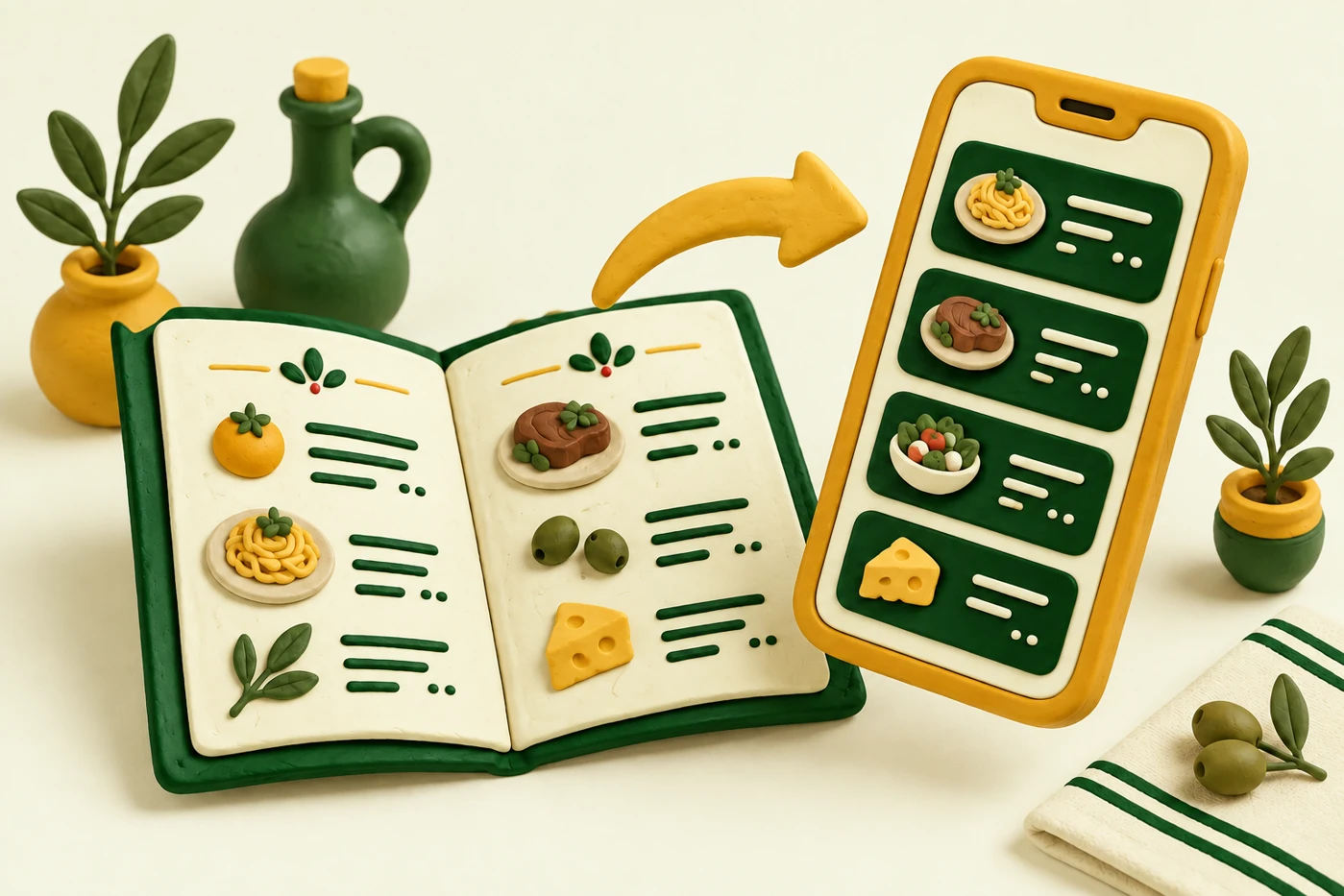
Digitising a restaurant menu can seem time-consuming: copying dishes, setting up categories, entering prices and checking each description.
You can start with the menu you already have.
With TAVLO, you can start from a photo or PDF of your current menu. AI recognises items, prices and categories and prepares a first draft of your digital menu.
Venue staff then review the information, make any necessary changes and decide when to publish it.
The result is an organised, editable digital menu you can keep up to date from your dashboard.
Quick answer: how do you turn a printed menu into a digital menu?
To turn a printed menu into a digital menu using TAVLO:
- Get the latest version of your menu.
- Take a clear photo or use the original PDF.
- Create a free TAVLO account.
- Upload the photo or document.
- Let AI recognise the items and prices.
- Review the information it finds.
- Add your logo, colours and other details.
- Publish the menu and download its QR code.
If you would like help, send us your menu and ask the TAVLO team to prepare it for free.
Either way, you can manage future changes yourself from your dashboard.
Scanning a menu and publishing a PDF are different
Here is how the two processes differ.
| Scan and share a PDF | Turn the menu into a digital menu |
|---|---|
| The menu is still a fixed document | Each item becomes editable |
| It can be hard to read on a phone | The content adapts to the screen |
| Changing a price means editing or replacing the file | Update just the price you need to change |
| Categories are fixed in the design | Rearrange categories as needed |
| Sold-out items stay on the menu | Update their availability |
| Each language requires a separate document | Offer multiple languages in the same menu |
| You may need to replace the file | The same QR code opens the latest version |
A PDF can work for a fixed menu. An editable menu gives you more control if you frequently change prices, add dishes or update availability.
TAVLO uses the contents of the photo or document to prepare a menu organised by items and categories.
What you can use to create your menu
You can start from several formats:
| Source format | What to check |
|---|---|
| Printed menu | Take clear photos of every page |
| Existing photo | Make sure the text and prices are legible |
| Use the most recent version | |
| Print design | Check that it matches what you serve now |
| Handwritten menu | Make sure the handwriting is legible and check the result carefully |
The quality of the original affects what AI can pick up.
If the menu has notes, crossed-out prices or handwritten changes, prepare a clean copy or make the necessary corrections afterwards.
1. Start with the correct version of the menu
Before taking a photo or uploading the file, confirm that you are using the current menu.
Check:
- Which items are still available.
- Whether prices are correct.
- Whether serving options or portions have changed.
- Which dishes to remove.
- Whether any new items are missing.
- Whether the categories still make sense.
- Whether recipes or ingredients have changed.
- Whether allergen information is up to date.
Digitising an outdated menu carries its errors into the new format.
The document does not need to be perfect. Identify changes before you publish it.
2. Take easy-to-read photos
A phone photo of your printed menu is enough if the content is clear. You do not need a professional scanner.
For best results:
- Place the menu on a flat surface.
- Use good lighting.
- Keep shadows off the text.
- Check for glare.
- Photograph the page straight on.
- Include the entire page.
- Keep all edges in the frame.
- For a long menu, take one photo per page.
- Make sure names and prices are readable.
- Retake the photo if it is shaky or out of focus.
Laminated menus can reflect light and obscure content. Try moving the light without tilting the camera too far.
Aim for a photo in which all the information is easy to read.
3. Upload your photo or PDF to TAVLO
After creating an account, use a photo or PDF of your menu to prepare the draft.
AI analyses the content and looks for:
- Categories.
- Item names.
- Descriptions.
- Prices.
- Different serving options or portions.
- Other information visible in the document.
The aim is to prepare a first draft and reduce the work of copying every item by hand.
AI helps transfer the information. The venue still needs to review it.
4. Review items and prices
This is the most important step.
Before publishing, check every category and item:
- The name is complete.
- The item is in the right category.
- The price matches the original menu.
- Each serving option has its own price.
- No dishes are missing.
- No items are duplicated.
- Descriptions are accurate.
- Extra charges are clearly shown.
- Availability reflects what you serve.
Watch for similar-looking digits, symbols, handwritten prices and menus with multiple columns.
Automated recognition saves work, and the venue must always confirm the information before publication.
5. Check allergens and dietary options
TAVLO’s AI can suggest possible allergens based on a dish’s name and description.
It does not independently know:
- The exact recipe.
- The brands used.
- Supplier labels.
- The ingredients in sauces.
- Changes made in the kitchen.
- Preparation conditions.
- Possible cross-contact risks.
Venue staff must check and confirm suggestions against their recipes and documentation.
The name of the dish alone is insufficient for identifying allergens.
Check vegetarian, vegan, gluten-free and lactose-free labels separately. These labels serve a different purpose from allergen information.
See our guide to providing allergen information in bars and restaurants.
6. Improve how your menu is organised
You can change the structure of the printed menu.
Going digital is an opportunity to rearrange the menu and make it easier for customers to find what they want.
For example, you can:
- Separate starters, mains and desserts.
- Group drinks by type.
- Create a category for the set menu of the day.
- Group seasonal specials.
- Reorder items.
- Highlight specialities.
- Show different serving options under one dish.
- Hide unavailable items.
Use category names that customers recognise. Rethink any grouping you created just to fit the printed page.
7. Complete the descriptions
Printed menus have limited space, so some items only show a name and price.
In a digital menu, you can add a description explaining:
- Main ingredients.
- How the dish is prepared.
- The sauce or accompaniment.
- Presentation.
- An important feature.
- Whether the dish is meant for sharing.
TAVLO’s AI can help draft these descriptions.
The venue should then check that descriptions are appealing and that every ingredient, preparation method and detail matches what it serves.
8. Add your own photos where they help
You can publish the menu before photographing every item.
Start with the essentials and add photos over time.
Prioritise photos of:
- House specialities.
- Items that are harder to explain.
- Dishes with a distinctive presentation.
- Items you want to feature.
- Items with a size customers might be unsure about.
Use real photos from your venue. An accurate description works better than a generic photo that misrepresents what you serve.
9. Customise the menu
Once the content is reviewed, make the menu feel like part of your venue.
With TAVLO you can add:
- Your logo.
- A cover image.
- Your venue’s colours.
- Different fonts.
- Your own photos.
- Social media links.
- A link to make leaving reviews easier.
Customise the menu to reflect the business while keeping items and prices easy to read.
10. Prepare the language versions
TAVLO lets you offer up to 10 languages within the same digital menu.
AI can help draft translations. The venue should pay particular attention to:
- Proper names.
- Ingredients.
- Preparation methods.
- Serving options and portions.
- Local expressions.
- Allergens and dietary options.
Customers can choose a language from the same menu, so you do not need separate PDFs.
11. Check the menu on your phone
Before publishing, open it as a customer would.
Check:
- Categories are easy to find.
- Items are in the right order.
- Each price matches the right serving option.
- Descriptions are complete.
- Allergen information is clear.
- Photos are appropriate.
- Translations are accurate.
- Sold-out items are marked correctly.
- The logo and colours look right.
Check both the dashboard and the public-facing menu.
12. Publish the menu and test the QR code
After confirming the information, publish the menu and download its QR code.
Before printing all the holders:
- Print or display a first sample.
- Scan the code from where customers will normally sit.
- Check that it opens the right menu.
- Check the size and contrast.
- Test it on more than one phone.
- Make sure the menu is easy to read.
The menu opens directly in the customer’s browser, with no app or account required.
13. Keep the same QR code when the menu changes
After putting the QR code in place, you can keep updating the information from the TAVLO dashboard.
You can:
- Change a price.
- Add a dish.
- Correct a description.
- Mark an item as sold out.
- Change a photo.
- Update a serving option or portion.
- Correct allergen information.
- Add a translation.
Customers see changes in real time using the same QR code.
You can make changes without rescanning the menu or reprinting the codes on the tables.
From a printed menu to an editable one
| Before | After converting in TAVLO |
|---|---|
| Items embedded in an image or design | Items editable in the dashboard |
| Prices that are difficult to change | Prices you can update individually |
| Limited space for descriptions | Room for more information about each item |
| A separate version for each language | Up to 10 languages in the same menu |
| Sold-out dishes still showing | Availability you can update |
| Reprinting after changes | The same QR code opens the updated menu |
| Reliance on a printer or designer | Managed directly by the venue |
Moving from paper to a screen gives you direct control over the information.
What if I want TAVLO to prepare the menu?
You can ask for free help.
Send a photo or PDF of your current menu and the TAVLO team can help prepare a first draft.
You will then need to:
- Review the items.
- Confirm prices.
- Check serving options.
- Check descriptions.
- Review the allergens.
- Confirm translations.
- Decide when to publish.
Once it is ready, you can manage future changes yourself from the dashboard.
We help you get started if needed. You keep the tools to maintain the menu yourself.
Checklist before publishing
Original document
- Does the photo or PDF match the current menu?
- Are names and prices legible?
- Are all pages included?
- Have handwritten corrections been identified?
Items
- Are all dishes and drinks included?
- Are the categories correct?
- Do the prices match?
- Does every serving option have its own price?
- Have you removed duplicate items?
Food information
- Have the recipes been reviewed?
- Have allergens been confirmed?
- Are vegetarian, vegan, gluten-free and lactose-free labels accurate?
- Do descriptions match what you serve?
Presentation
- Is the logo correct?
- Do the colours make the menu easy to read?
- Do the photos show the actual items?
- Have translations been reviewed?
Publishing
- Does the menu work properly on a phone?
- Does the QR code open the right menu?
- Does the team know how to update the menu?
- Has someone been put in charge of keeping it up to date?
Frequently asked questions
Can I turn a photo of my menu into a digital menu?
Yes. Use a legible photo of your menu to prepare a first draft in TAVLO.
Can I also use a PDF?
Yes. You can start from a photo or PDF of your current menu.
Does AI publish the menu automatically?
No. AI helps recognise and organise the information. The venue reviews it and decides when to publish.
Do I have to copy all items manually?
No. TAVLO can recognise items, categories and prices in a photo or PDF. You can then correct the information and fill in gaps.
Can I do it myself?
Yes. When you sign up, your account gives you the tools to create and manage the menu.
Can the TAVLO team do it for me?
Yes. Send us your menu and ask us to prepare it for free. You can then manage it yourself from your dashboard.
Does AI identify allergens?
It can suggest possible allergens. Venue staff must check and confirm them against recipes, labels and documentation.
Can I correct mistakes later?
Yes. Update items, prices, descriptions, photos and other information from the dashboard.
Do I have to change the QR code after editing the menu?
No. The same QR code opens the updated menu in real time.
Do customers need to download an app?
No. The menu opens directly in the phone’s browser.
How much does it cost to convert the menu with TAVLO?
Creating, publishing and managing the menu costs the venue €0. There is no monthly fee, card or commitment.
Scan your menu and make it editable
Turning a printed menu into a digital menu can do more than put a photo or PDF online.
The benefit is being able to change a price, remove a dish or correct a description without starting over.
With TAVLO, start with your existing menu, use AI to prepare the content and review the information before publishing.
You stay in control afterwards.
Turn my menu into a free digital menu