Digital menu
What a modern digital menu should include
Organise categories, prices, allergens and availability so guests find what they need and your team keeps the menu current.
Reviewed on 12 Oct 2026
Start with what guests need to know
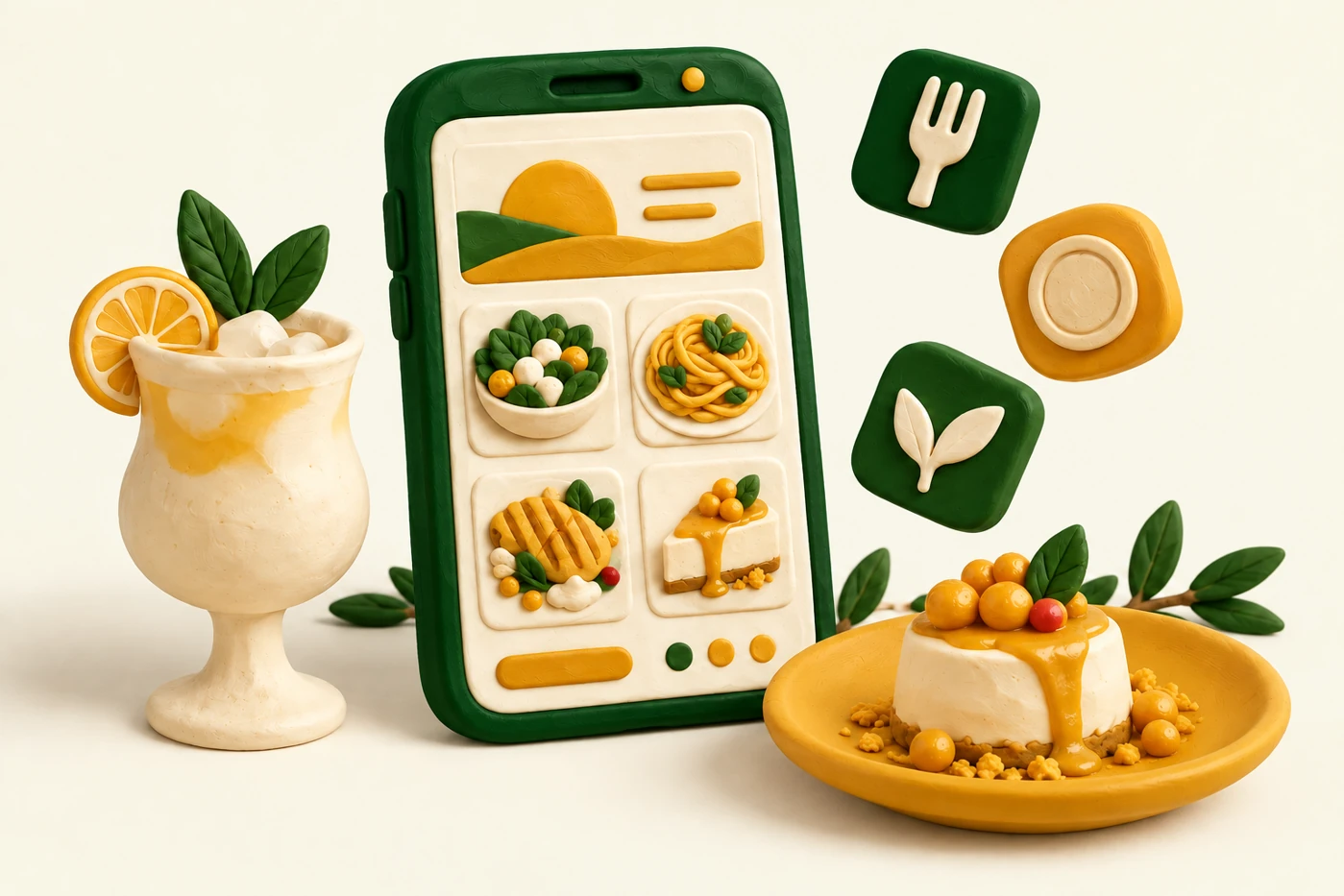
A useful digital menu answers three questions: what can I order, what does it cost and what should I know about the dish? Before adding effects or photos, ensure these answers are clear on a phone.
TAVLO lets you organise categories and edit product information. The benefit is a menu that follows service: when a price changes or a dish sells out, correct it in the dashboard without rebuilding the whole document.
Organise categories around how guests decide
Use familiar names: starters, mains, desserts and drinks. For long menus, split drinks or separate daily specials. Avoid internal categories only your team understands.
Try a simple task: ask someone to find a vegetarian dish, a drink and a dessert. If they need the whole menu, review ordering and descriptions. Keep dish names short and details in the listing.
Match each portion size to its price
When a product has tapas, half and full portions, show each size and price. Do the same for actual sizes or supplements. A standalone price creates uncertainty if the quantity is unclear.
TAVLO stores price variants within one product. Guests see the options together and you can update one variant without duplicating the dish across categories.
Descriptions that answer a real question
A useful description explains a product without repeating its name. State the main ingredients, preparation and a detail that clarifies the portion option. If a dish is for sharing, confirm how you present it and avoid assigning a number of people that does not reflect your service.
For example, describe a salad’s ingredients and dressing rather than simply calling it ‘special salad’. In TAVLO you can edit that explanation in the product details. Review the text with the kitchen so an appealing description remains accurate.
Check information and availability before service
Confirm allergens against recipes and ingredient documentation. Review dietary labels separately: vegetarian alone does not answer an allergy question.
Publish photos representing actual dishes, especially when explaining presentation or portion size. Without a good image, a precise description is still useful.
Assign responsibility for updating sold-out products. TAVLO lets you change availability in the dashboard; the same QR code shows the updated menu.
- Check prices and variants before opening.
- Review recipes when ingredients or suppliers change.
- Update sold-out dishes during service.
- Browse the menu on your phone as a guest would.
Add features with a purpose
If guests speak other languages, check they understand names, descriptions and sizes. A review link helps people share their experience but should not obstruct menu browsing.
TAVLO combines editing products, variants and allergens in a menu with no venue subscription fee. Start with essential information and request free preparation help, reviewing the result before use.
Check an update from start to finish
Choose a routine change such as a coffee price or dessert availability. Make the change in TAVLO, save it and open the public menu on another device or refresh the page. This verifies the information customers will see.
This test also helps teach the task to another team member. A well-organised menu does not depend on remembering how it was designed: it depends on clear products and someone keeping them correct during service.
Frequently asked questions
Do I need photographs of every dish?
No. Prioritise accurate, readable information. Add your own images when they help explain a dish or presentation.
How do I keep my menu current?
Assign someone to review prices, recipes and availability. TAVLO lets you make dashboard updates without rebuilding the menu.