Practical guides
How to create a free QR digital menu for your restaurant
From a paper menu to an editable menu: dishes, prices, allergens and a QR code you can keep using when your menu changes.
Reviewed on 12 Oct 2026
A free digital menu you can actually use
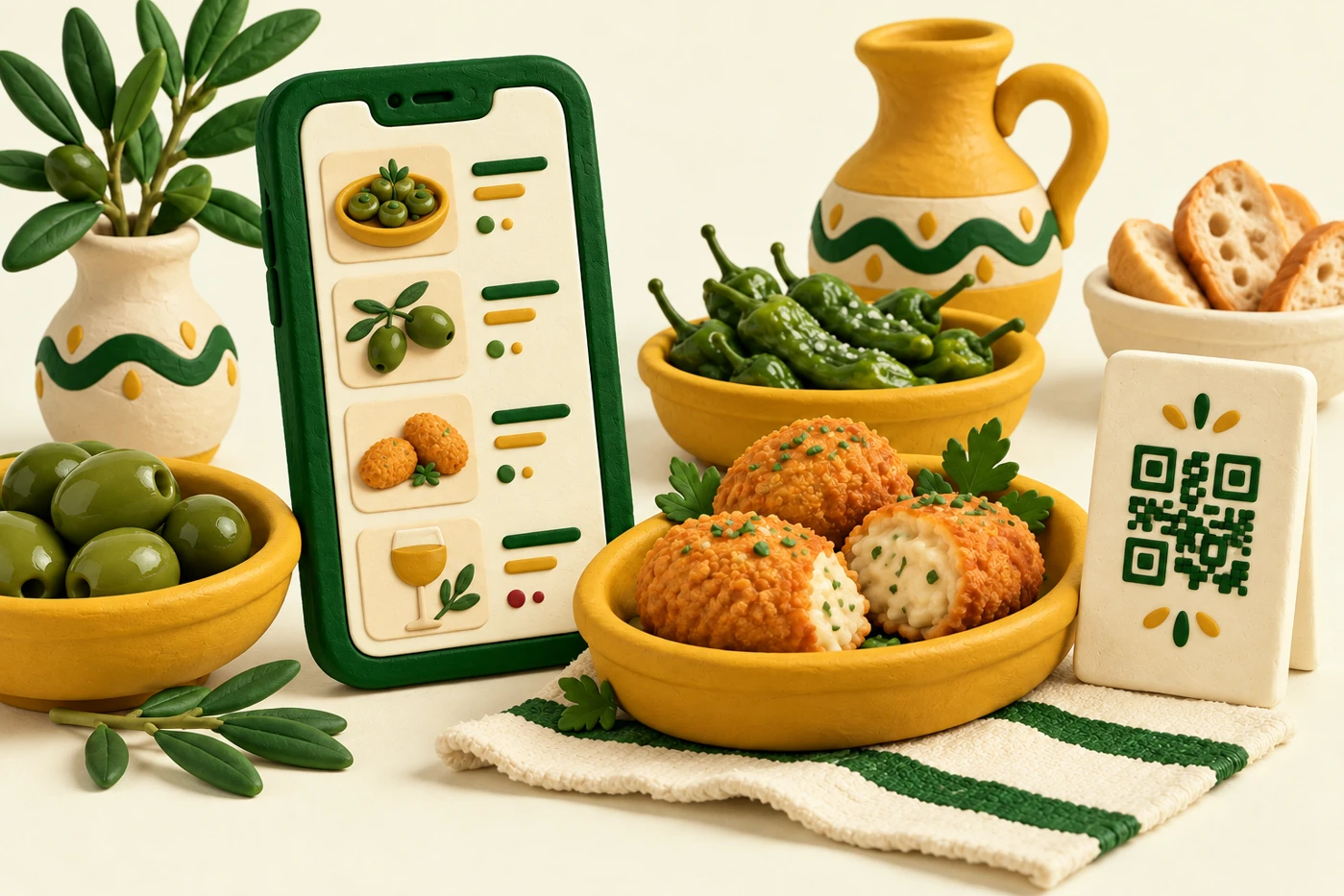
To create a free QR digital menu, gather your dishes, prices and verified allergens and prepare your menu in TAVLO. You can then update it from your phone and keep the same QR codes on your tables.
A good menu is comfortable to read on a phone and easy to update between services. This guide helps you prepare a clear first version with TAVLO and keep it in step with your restaurant.
1. Choose a menu that's easy to update
An editable menu brings starters, mains, desserts and drinks together in a menu you can keep current. Look for a tool such as TAVLO that makes adding dishes and changing prices easy.
A menu organised by product lets you correct the information that has changed without rebuilding the whole menu. In TAVLO you can maintain dishes, prices and variants from the dashboard and check the result in the public view.
Open your menu on a phone: check that you can find drinks, understand the portion options and read the price of each choice. This test connects menu preparation with the actual customer experience.
TAVLO offers the venue a menu with no fees, no card and no commitment. You can request free help preparing it from your current menu and review the result before sharing it.
2. Prepare the information your kitchen and front-of-house team need
Gather your current menu and choose the categories guests will use: tapas, mains, desserts and drinks are often a good start. You do not need photos of everything to publish a clear version.
For each product, prepare its name, short description, price and actual variants. If you sell tapas, half portions and full portions, match each size to its price rather than making guests ask. TAVLO lets you keep those options together within one product.
Confirm allergens using recipes and supplier documentation. Do not infer them from names alone. A croquette or sauce may contain ingredients guests cannot see.
- Simple categories and understandable names.
- Checked prices, including supplements and variants.
- Confirmed availability and allergens.
- Your own photos of dishes you want to highlight.
3. Bring your menu into TAVLO and review it
Add dishes individually, upload a product list or scan your existing menu. Choose what suits the materials you have. If you prefer help, TAVLO offers free menu creation from your current menu.
Even when importing saves time, review every product before publishing. Check decimals, categories, portions and descriptions. AI suggestions and text recognition need your confirmation, especially for allergens.
Customise the menu with your venue's identity and open the public view. Think of a first-time guest: they should understand what they can order and what it costs without knowing your kitchen's internal organisation.
4. Download the QR code and test it before printing
From My QR Code, download TAVLO's print-ready poster. Keep using the same QR code when you update dishes, prices or new items; it does not need renewing for every menu change.
Choose a comfortable scanning size and clear print. Test a stand on a table with your phone camera before placing the rest.
Place it where customers can see it when seated, with a simple instruction such as ‘Scan to see the menu’. Web access needs an internet connection. Keep an alternative way to consult the menu and staff assistance for anyone unable to use a phone.
5. Keep the menu in step with service
When a dish sells out, change its availability. When a price changes, update it before the next service. The same TAVLO QR code opens your updated menu.
Assign someone to review new items and check again when recipes or suppliers change. A short routine stops the digital menu becoming another outdated version.
Start with a correct, easy-to-browse menu, then add better photos or more detail. TAVLO lets you take that first step without a monthly fee and keep editing from your phone.
Example: prepare a dish that changes with the seasons
Imagine adding a seasonal salad. Give it a clear name, describe the main ingredients and confirm portion options and prices with the kitchen. If you add a photo, use one that represents the dish you serve.
Save the product in its TAVLO category and open the public menu on a phone. Check that the price is clear and the reviewed information is visible. When the salad becomes unavailable, update its status; you do not need to generate another QR for that change.
Frequently asked questions
Do my guests need to install an app?
No. TAVLO's menu opens in the phone browser when guests scan the QR code.
Do I need a new printed QR code when a price changes?
No. Update the price in TAVLO and guests see the new menu through the same QR code.
Can TAVLO create the menu for me?
Yes. You can ask the team to prepare the menu free of charge from your existing menu. Review prices, dishes and allergens before using it.