Digital menu
Digital menu vs. PDF for restaurants: which should you choose?
Compare a PDF menu with an editable digital menu: mobile readability, real-time updates, translations and how to switch to TAVLO.
Reviewed on 22 Nov 2026
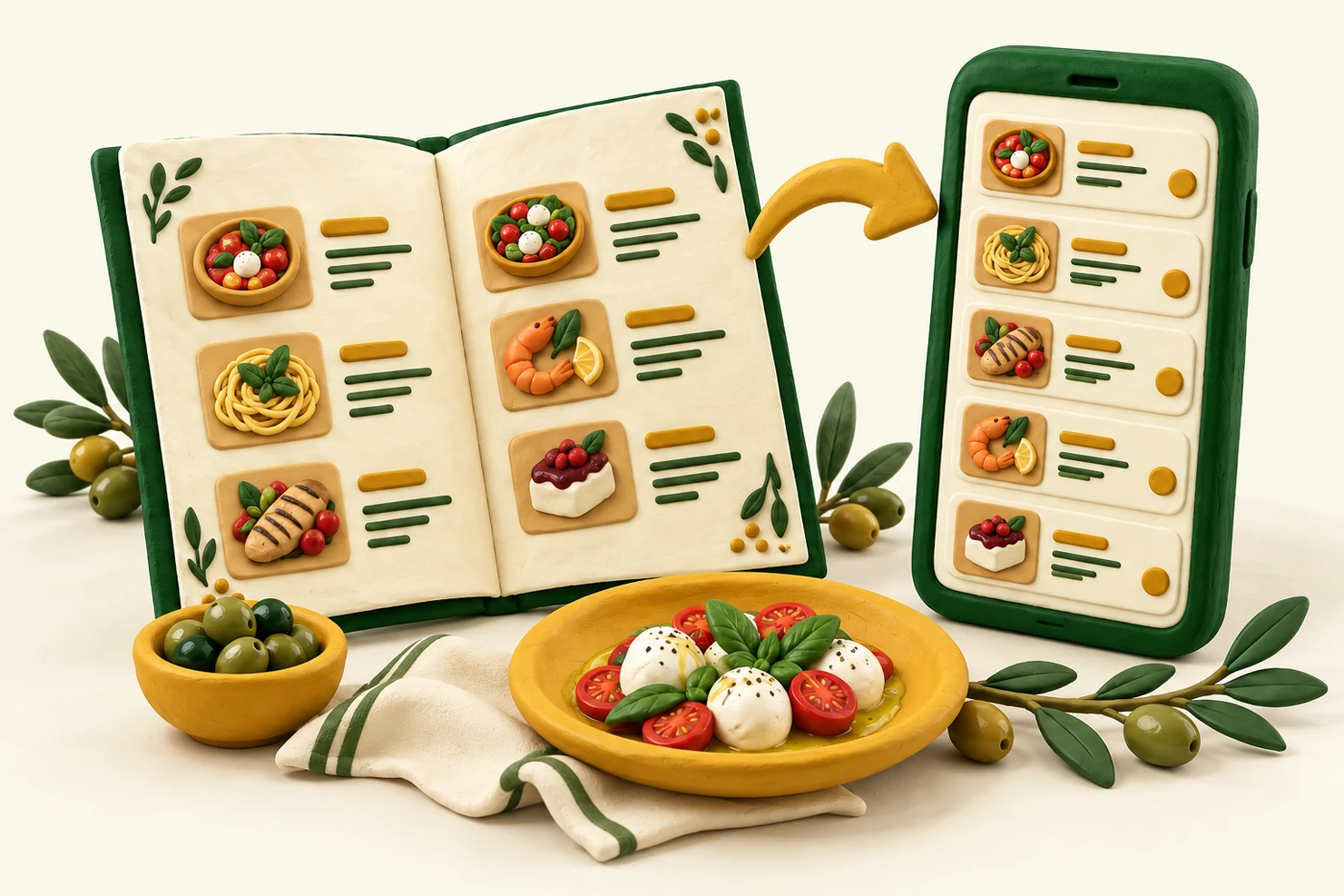
A dish sells out in the middle of service. On a PDF menu it stays visible until you update the file. In the meantime, staff have to tell customers who try to order it. With TAVLO, you can mark it as sold out on your phone and the change appears in real time.
A QR code can open either format. The difference is in how customers browse the menu and how much work it takes to keep it up to date.
Quick answer: what is the difference between a digital menu and a PDF?
You update a PDF menu as a document. With an editable digital menu, you can change each dish, price or description individually. TAVLO shows changes in real time, without exporting and uploading another file.
With a PDF, you can put translations in one document or prepare a file for each language. With TAVLO, you can offer the same menu in up to 10 languages: customers scan one QR code and choose their language.
PDF menu vs. TAVLO digital menu: comparison table
| Task | PDF menu | TAVLO digital menu |
|---|---|---|
| Read the menu on a phone | The document keeps its layout. If it was designed for print, customers may need to zoom in. | The menu fits the screen and customers browse categories in their browser without installing an app. |
| Change a price | You edit the document and publish the new PDF. | You change the price in your dashboard and the update appears in real time. |
| Add or remove a dish | You edit the document and publish it again. | You add or remove the dish in your dashboard and the change appears in real time. |
| Mark a dish as sold out | You add the notice to the document and publish it again. | You mark the dish as sold out in your dashboard and the notice appears in real time. |
| Update a dish’s allergen information | After confirming the information, you edit the document and publish it again. | After confirming the information, you update the dish in your dashboard and the change appears in real time. |
| Correct a translation | You edit the PDF containing the translation and publish it again. | You edit the text in the relevant language and the change appears in real time on the same menu. |
| Keep the QR code when updating the menu | You can keep it if the updated version is available at the same address. | You keep your TAVLO QR code and the changes appear in real time. |
When is it worth switching from a PDF to an editable menu?
A PDF works well if your menu rarely changes, is easy to read on a phone and staff can update it easily. It is also useful if you want to preserve a particular layout for printing.
The difference becomes apparent when a small change turns into another task on your list. If you correct a price and have several PDFs in different languages, you need to update each file it appears in. With TAVLO, you change the price in the product details, and customers see the same menu whichever language they choose.
A menu that reflects your venue
The menu is part of the experience at your bar or restaurant. With TAVLO, you can customise it with your logo, colours, a cover image, a font and photos of your dishes. See how it looks in the VIDA sample menu.
Once the menu reflects your venue’s style, you can add a dish or correct a price without redesigning it.
What happens to the QR code already on your tables?
When you switch from a PDF to TAVLO, you will get a new QR code. If you already use a code to open the PDF, replace it with your TAVLO code when you publish the new menu.
| When | What to do with your QR code |
|---|---|
| You switch from a PDF to TAVLO | Put out the new QR code for your TAVLO menu. |
| You update the menu after publishing it | Keep the same TAVLO QR code. Changes appear in real time without reprinting it. |
How to switch from a PDF to an editable digital menu with TAVLO
- Choose the current version of your menu. If you have several PDFs, use the one that best reflects what you serve today and note any changes it does not show. If you have a paper menu, you can also start from a legible photo.
- Upload the menu from your TAVLO account. AI helps transfer dishes, prices and categories into an editable first draft so you do not have to copy everything by hand.
- Review the content before publishing. Check that each price matches its portion size and that translations describe what you actually serve. AI can also suggest potential allergens, but staff must always review and confirm them using recipes, product labels and ingredient documentation.
- Customise, publish and test the new QR code. Scan it from a table as a customer would. Check that it opens your menu, that prices are easy to read and that the language selector works if you have enabled several languages.
You can do this yourself from your account. If you would like a hand, send us your PDF and the TAVLO team will prepare the menu for free. Either way, you review the result, decide when to publish it and manage changes from your dashboard. See the process in How TAVLO works.
Frequently asked questions
Is a PDF with a QR code the same as an editable digital menu?
No. A QR code can open either format, but it does not make a PDF menu editable. With TAVLO, you can change dish details in the dashboard without publishing another document.
Do I have to upload the PDF again every time I change a price?
No. Once the items are in TAVLO, edit the price directly from your dashboard. The update appears in real time and your QR code stays the same.
Do I need a separate QR code for each language?
No. You can offer up to 10 languages on the same TAVLO menu. Customers scan one QR code and choose their language on the menu.
Do my customers need to install an app?
No. Scanning the TAVLO QR code opens the menu directly in the phone’s browser.
How much does it cost to switch my PDF to TAVLO?
Creating, publishing and managing your TAVLO menu is free, with no monthly fee, card or minimum commitment. You can also get free help preparing the first version.
Start with the menu you already have
Your PDF already contains much of the work: your dishes, categories and prices. Start from it, style the menu to suit your venue and publish it with its new QR code. Next time a price changes or a dish sells out, you can update it yourself without redoing the document.
Turn my PDF into a free digital menu