Digital menu
Benefits of a QR menu for your restaurant’s daily operation
Change prices, flag sold-out dishes and give guests a menu that’s easy to browse on a phone.
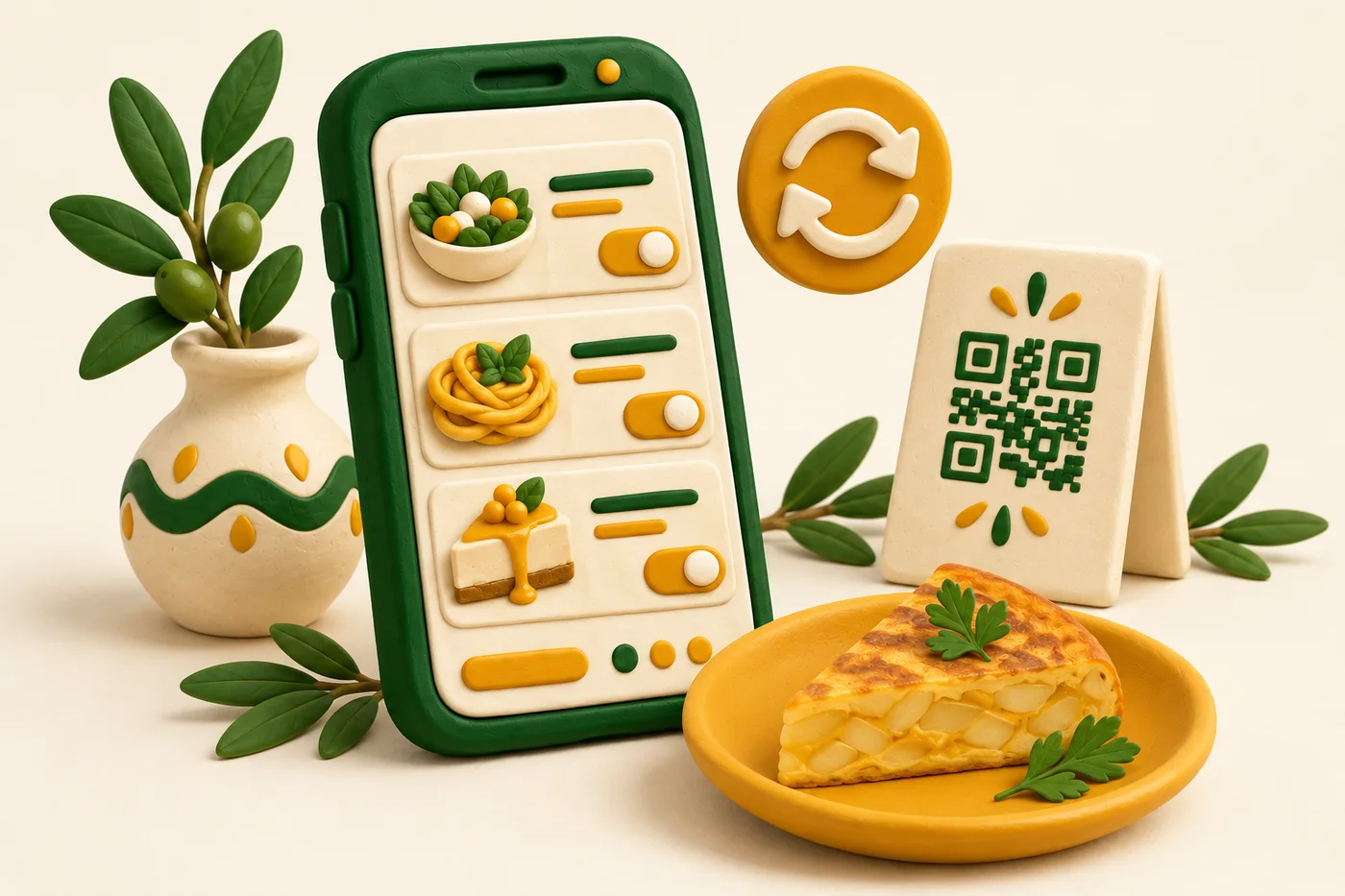
The dessert of the day sells out halfway through service. The kitchen tells the front-of-house team and the person in charge marks it as sold out in TAVLO. The next guests see the notice when they open the menu using the same QR code on the table.
The same menu lets you update prices, add seasonal dishes and give guests information they can check before ordering.
What are the benefits of an editable QR menu?
An editable QR menu lets you change prices, dishes and availability from a dashboard. Updates appear in real time and the same QR code still opens the menu. With TAVLO, guests can browse in their browser, see allergen information checked by the venue and choose from the languages it has published.
| Situation | What you can do with an editable QR menu |
|---|---|
| A portion price changes | Update the price for that portion in the dashboard. |
| A special sells out | Mark it as sold out and update its availability when it returns. |
| A seasonal dish arrives | Add it to its category with a description, price and confirmed allergens. |
| An ingredient changes | Review the recipe and supplier documentation before updating its allergens. |
| A guest wants to read the menu in another language | They can choose an available language from the same menu. |
Update prices and dishes with the same QR code
If a portion price changes, you can adjust just that price. If you add a seasonal tapa, put it in its category with a description, price, portion sizes and a photo of the dish. When the season ends, you can remove it from the dashboard.
The TAVLO QR code opens your menu page. You can keep using the same table signs when you change prices, add photos or reorganise categories.
Let guests know when a dish sells out
Agree who updates the menu when the kitchen reports that a dish has sold out. That person can mark it in the dashboard, check the notice on the public menu and make it available again when it returns.
You can see how the ‘Sold out’ notice appears on the VIDA sample menu.
Help guests choose on their phones
Guests scan the QR code and browse the menu in their browser without installing an app or creating an account. Categories help them find what they want, and a short description shows what’s in a dish or whether it’s intended for sharing.
If you offer tapas, half portions and full portions, show the price of each size next to the dish. Add photos of the actual food when they clarify presentation or size. You can use your venue’s logo, colours and cover image, then check on a phone that the text is easy to read.
Publish checked allergen information and offer several languages
In TAVLO, you can display allergens next to a dish and mark options such as vegetarian, vegan, gluten-free or lactose-free. Check dietary labels and allergens separately. AI can suggest potential allergens, and staff must confirm them against the recipe, labels and supplier documentation before publishing them.
You can offer up to 10 languages on the same menu. If you serve international guests, enable the languages they use most and check how ingredients, cooking methods and portion sizes are translated.
If a recipe or supplier changes, see our guide to managing allergens on a digital menu.
Make reviews and social profiles easy to find
You can link your venue’s social profiles and its preferred review page, such as Google Maps or Tripadvisor. Make the link available to any guest who wants to share their experience, without pressure, incentives or a request for a specific rating.
You’ll find examples in our guide to asking for reviews without bothering your guests.
Start with your existing menu and manage changes for free
Upload a legible photo or a PDF so AI can prepare an editable draft, or ask the TAVLO team to help prepare it for free. Before publishing, check the dishes, prices, translations and allergens. You can keep editing it from your dashboard afterward.
Creating, publishing and managing the menu costs the venue €0, with no monthly fee, card or minimum commitment. You can download the QR code for free and print it yourself. Printed stickers are optional.
Guests who want to browse offers from brands can open the separate ‘For You’ section. If an offer generates a commission, TAVLO shares a portion with the venue. Payments depend on available campaigns and guests’ actions.
See what’s included in our guide to the cost of a digital menu.
How to use your QR menu before, during and after service
Before opening, review prices, specials and availability with the kitchen. During service, mark dishes as sold out as soon as you hear. After closing, prepare the next day’s changes and open the public menu on a phone to see how they look.
Frequently asked questions
Do I need to change the QR code when I update the menu?
The same TAVLO QR code still opens the menu when you change dishes, prices, descriptions or photos.
Can I update the menu from my phone during service?
Yes. You can open your TAVLO dashboard on your phone and, for example, mark a dish as sold out.
Do I need photos of every dish before publishing?
You can start with names, prices, descriptions and checked allergen information. Add photos of the dishes when they help guests choose.
How many languages can a TAVLO QR menu have?
You can publish up to 10 languages on the same menu. Guests choose from the available languages in their browser.
Who confirms allergens before the menu is published?
Venue staff must check the recipe, labels and supplier documentation and review any suggestions generated by AI.
How much does it cost to use a QR menu with TAVLO?
Creating, publishing and updating your menu costs €0. You can also download the QR code or get help preparing the first version for free.
Start with the menu you already have
Use a photo or a PDF of your current menu. If you need a hand preparing it, the TAVLO team can help for free. When you want to change a price or add a dish, you can do it from your dashboard.
Create my free menu